
- A name@yourbusiness email looks more trustworthy than a free address.
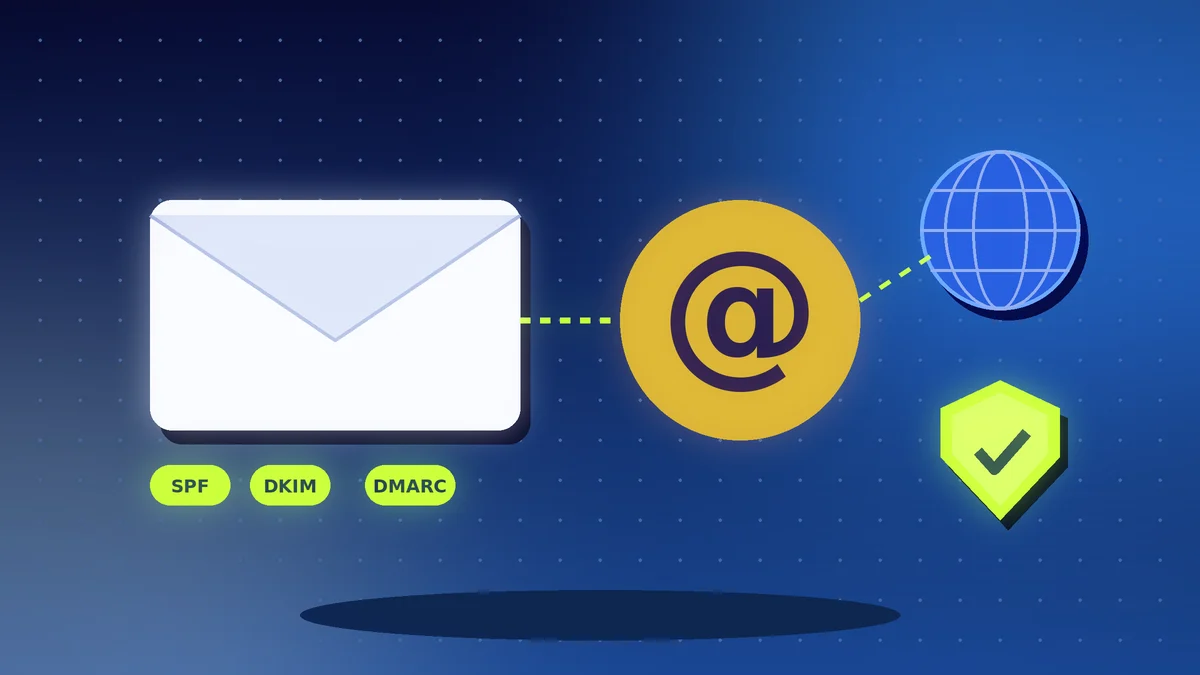
- SPF, DKIM and DMARC records help your emails reach the inbox instead of spam.
- Turn on two-factor authentication and back up your domain's login details.
The Short Answer
An email address that ends with your own business name builds trust. It also gives you control, because the address stays yours even if you change provider. Set it up properly, with three small records called SPF, DKIM and DMARC, and your messages are far more likely to reach the inbox. If you use email to sell, see our comparison of ConvertKit and Mailchimp.
Step 1: Choose and Register a Domain
Pick a short name that is easy to spell and say aloud, and avoid numbers and hyphens where you can. Register it with a reputable registrar, in your own business name, with your own account. Turn on auto-renewal and two-factor authentication, because losing a domain can take your website and email offline.
Step 2: Choose an Email Provider
Options include business plans from large providers and the email hosting included with your web host. Compare price, storage, spam filtering, mobile apps and support. The cloud suite comparison may help if you also need documents and storage. Check each provider's current plans and prices on its own website.
Step 3: Connect Your Domain
Your email provider will give you records to add in your domain's DNS settings. These usually include MX records that route mail to the provider. Add them exactly as shown and allow time for the changes to take effect, which can take from minutes to a day.
Step 4: Add SPF, DKIM and DMARC
| Record | What it does |
|---|---|
| SPF | Lists the servers that are allowed to send mail for your domain |
| DKIM | Adds a digital signature so receivers can see the message was not altered |
| DMARC | Tells receivers what to do if a message fails checks, and sends you reports |
Your provider's help pages show the exact values. Start with a DMARC policy that only monitors, then tighten it after you are sure that your real mail passes.
Step 5: Protect the Account
Use a unique password and two-factor authentication, as described in our password manager guide. Set up forwarding rules carefully, and check for unknown rules, since attackers sometimes add them to spy on your mail.
Step 6: Send Good Email
Avoid all-capital subject lines, too many links and attachments from new senders. Use a clear subject, a real signature with your business details and a simple way to reply. If you send newsletters, send only to people who agreed to receive them and include an easy way to unsubscribe.
Action Checklist
- Register your domain under your own account
- Turn on auto-renewal and 2FA for the registrar
- Choose an email provider and create your addresses
- Add the MX records the provider gives you
- Add SPF, DKIM and DMARC records
- Test by sending email to a few different providers
- Check mail rules and forwarding for anything unknown